 sensor labs
Start here
Set up your company’s data
The complete new-customer walkthrough, from company basics to saved counts.
Screenshots use sample company data. Captured November 12, 2026.
1. Company basics
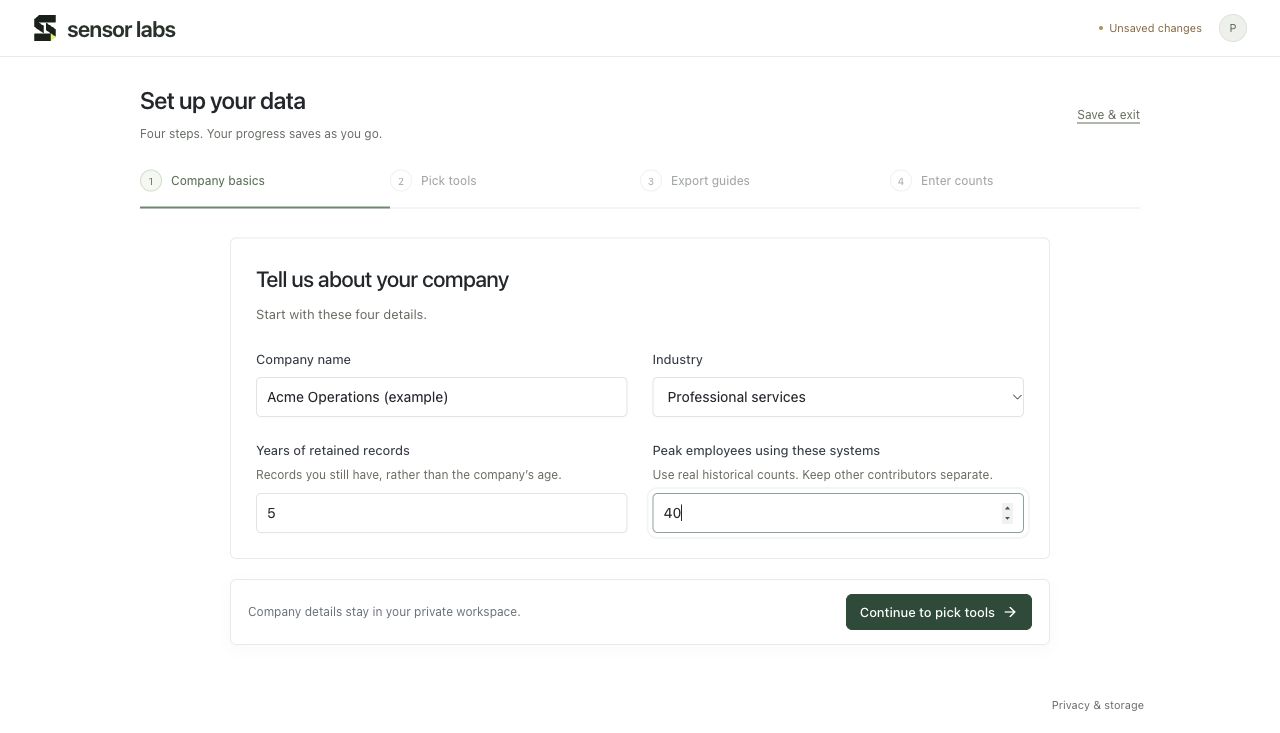
A new workspace opens Guided setup. There is no sidebar to work through: the four steps stay at the top.
Enter your company name, industry, years of records you still retain, and the peak number of employees who used these systems. Retained history is different from company age; employees are different from accounts or contractors.
2. Pick tools
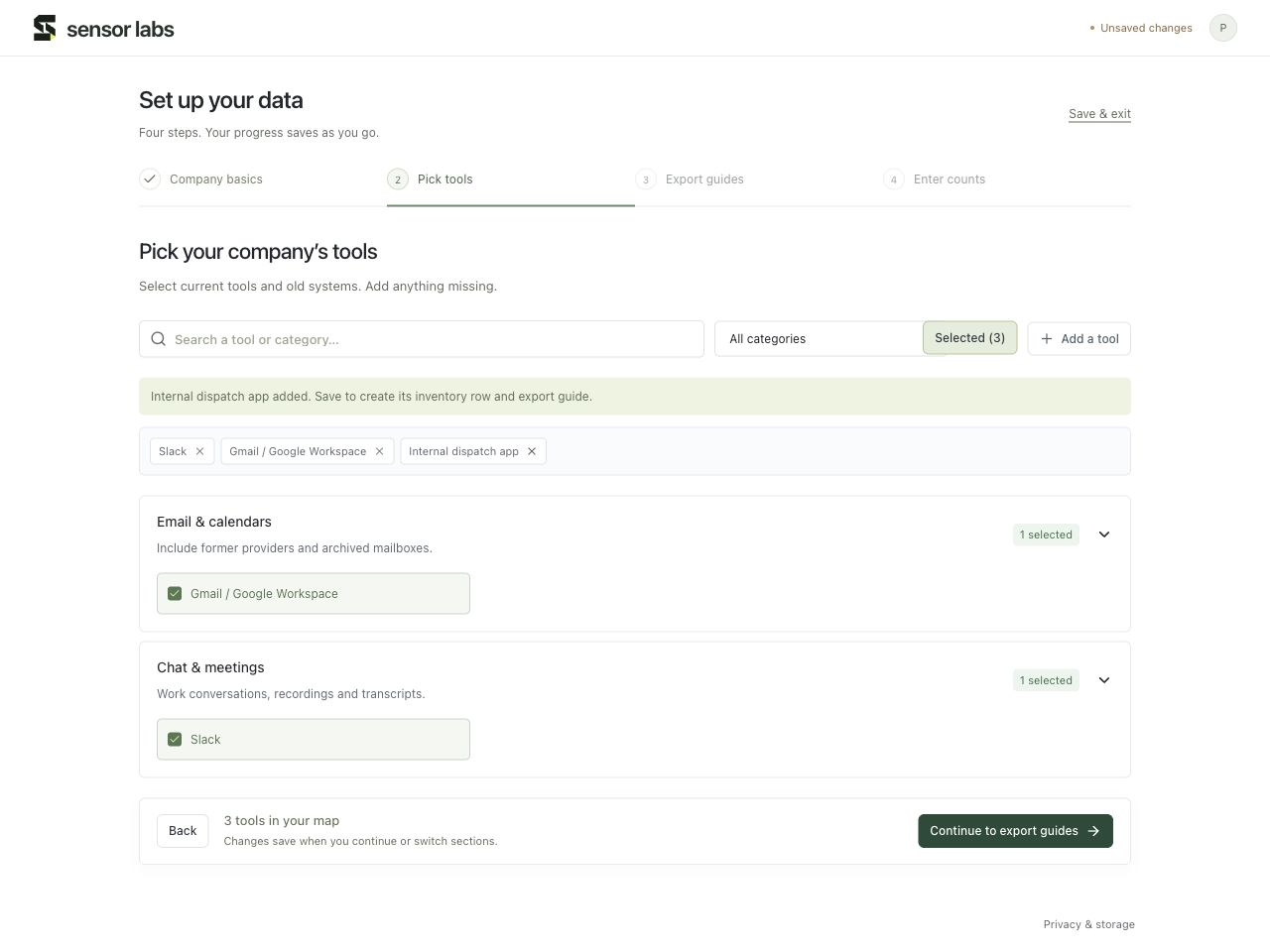
Select the systems that hold company records, including former providers and archives. Browse the categories or search by tool name. Use Selected to review your choices.
For an internal app or an unlisted service, choose Add a tool, enter its name, then Add to your tools. Continue to export guides saves the selection and creates a blank inventory row for each new tool. Selecting a tool does not connect it or grant access.
3. Export guides
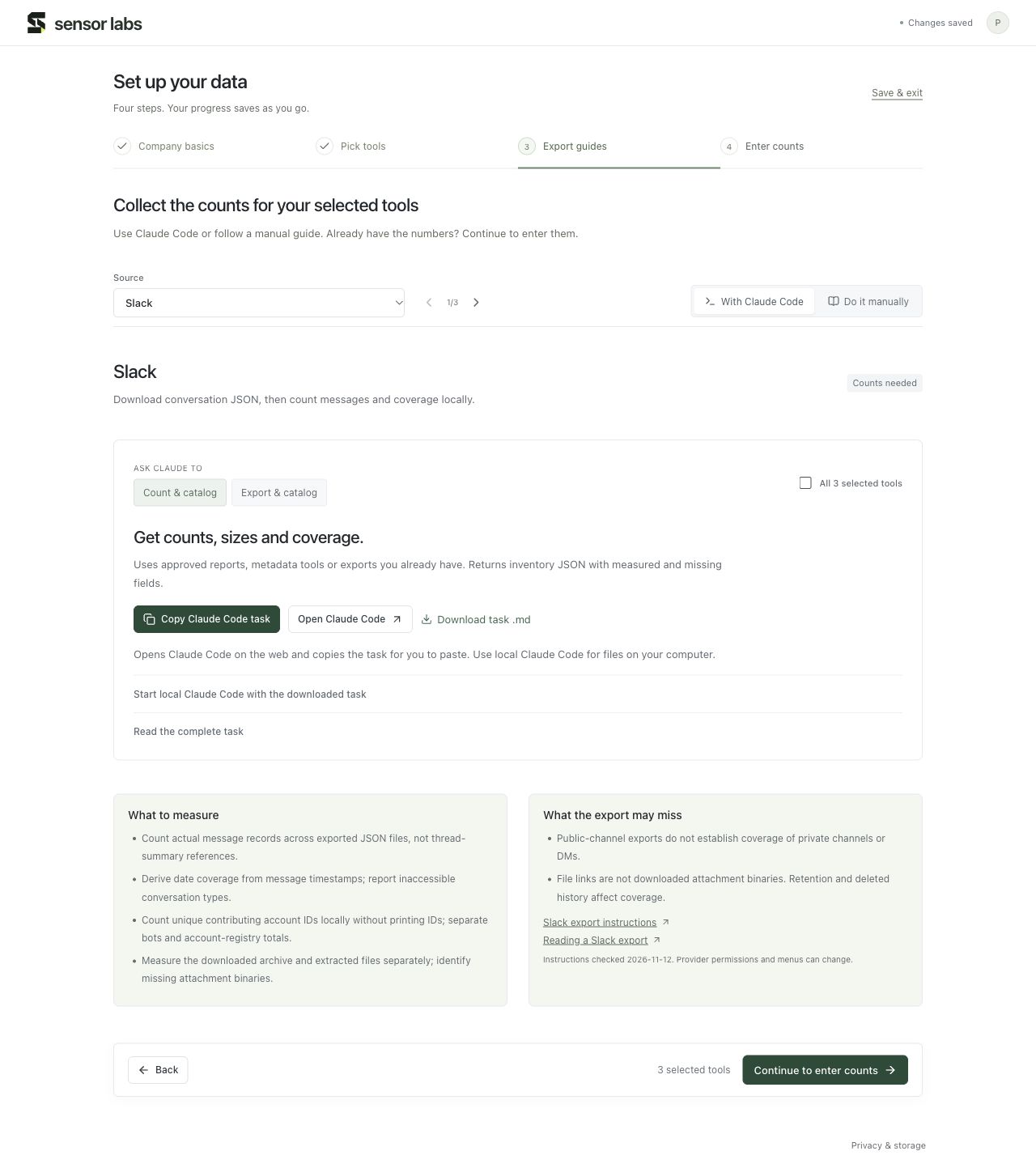
Choose Connect Claude to add your Sensor Labs workspace and start a guided catalog that saves counts directly. You can also work through the source-specific Claude Code tasks or manual guides below.
The Source selector now contains your selected tools. Each source has its own guide; custom tools get a clearly labeled general guide.
With Claude Code gives you a task to copy or download. Count & catalog uses approved reports, metadata or existing exports. Export & catalog asks the assistant to help obtain the agreed exports as well. Open Claude Code copies the task and opens the web app; paste the task into your session. Use local Claude Code when the work needs files on your computer.
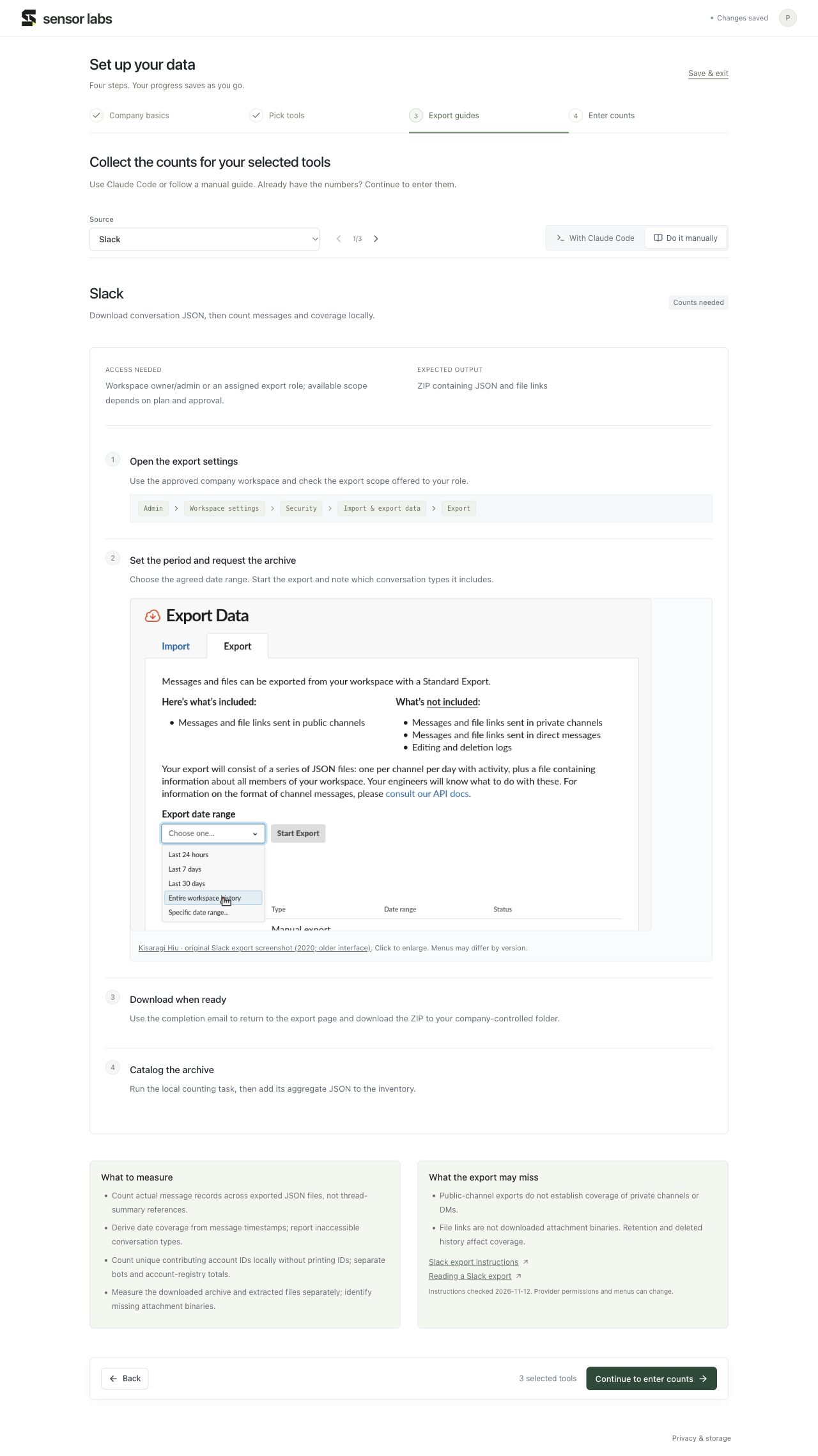
Prefer to do it yourself? Choose Do it manually for the steps and inline screenshots. Read What the export may miss before treating the figures as complete. Already have the numbers? Choose Continue to enter counts.
The manual route uses the same flow
Switching to Do it manually changes the instructions, not the source list or the next step. Follow the guide using the permissions available in your own company account. Screenshots appear in the instructions; older provider interfaces are labeled. Keep downloaded archives in company-controlled storage.
4. Enter counts, one source at a time
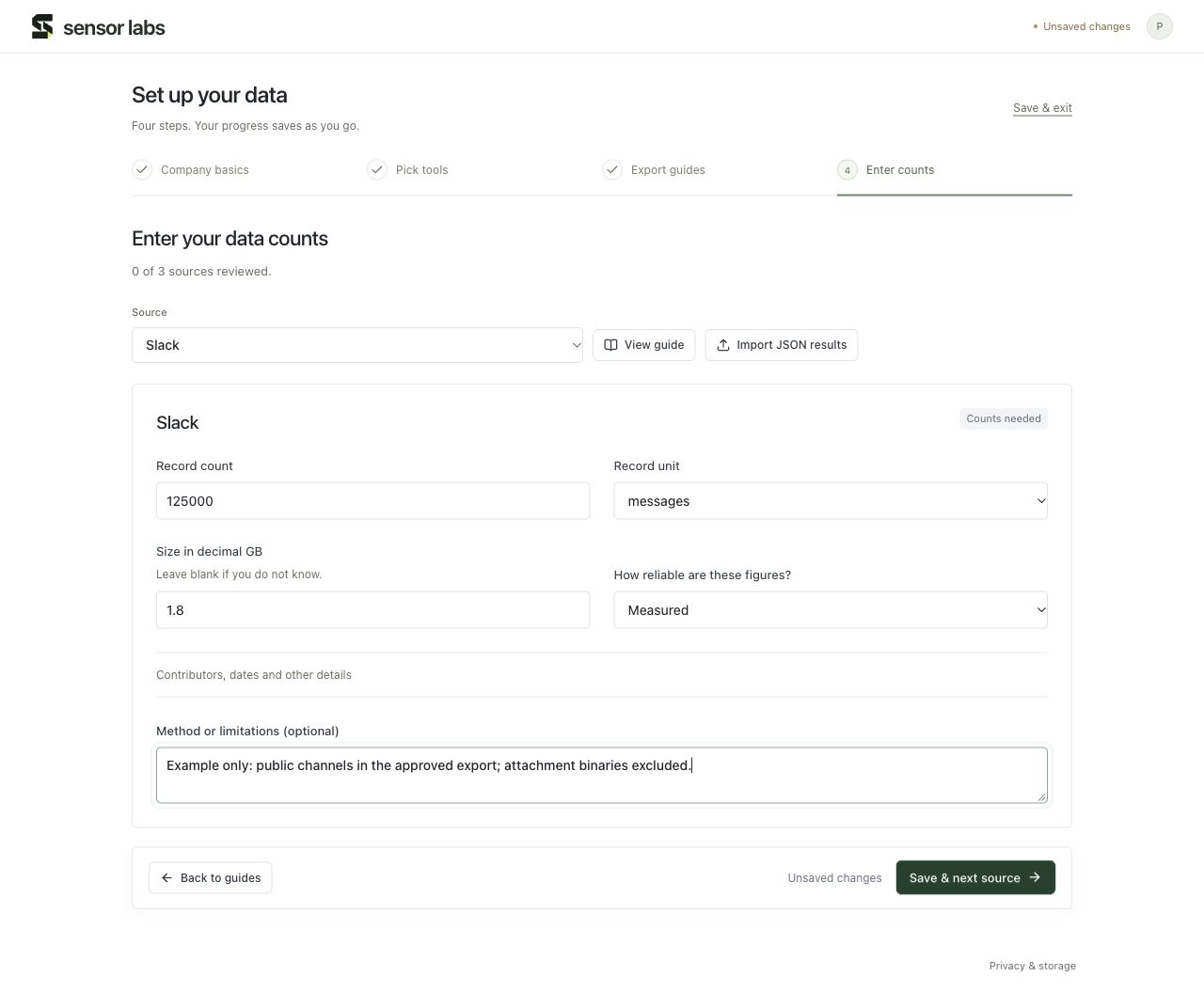
Enter a record count, its unit, the size in decimal GB if known, and the basis for the figures. In this example Slack has 125,000 messages and 1.8 GB measured from an export. These are sample figures, not a valuation or a customer dataset.
Save & next source saves the current row and opens the next source needing review. Use the Source selector to revisit a source. If a source has several export rows, review each row individually.
- Measured: counted directly from the stated report or export.
- Partial: measured figures with known coverage gaps.
- Estimate: approximate figures; explain the method.
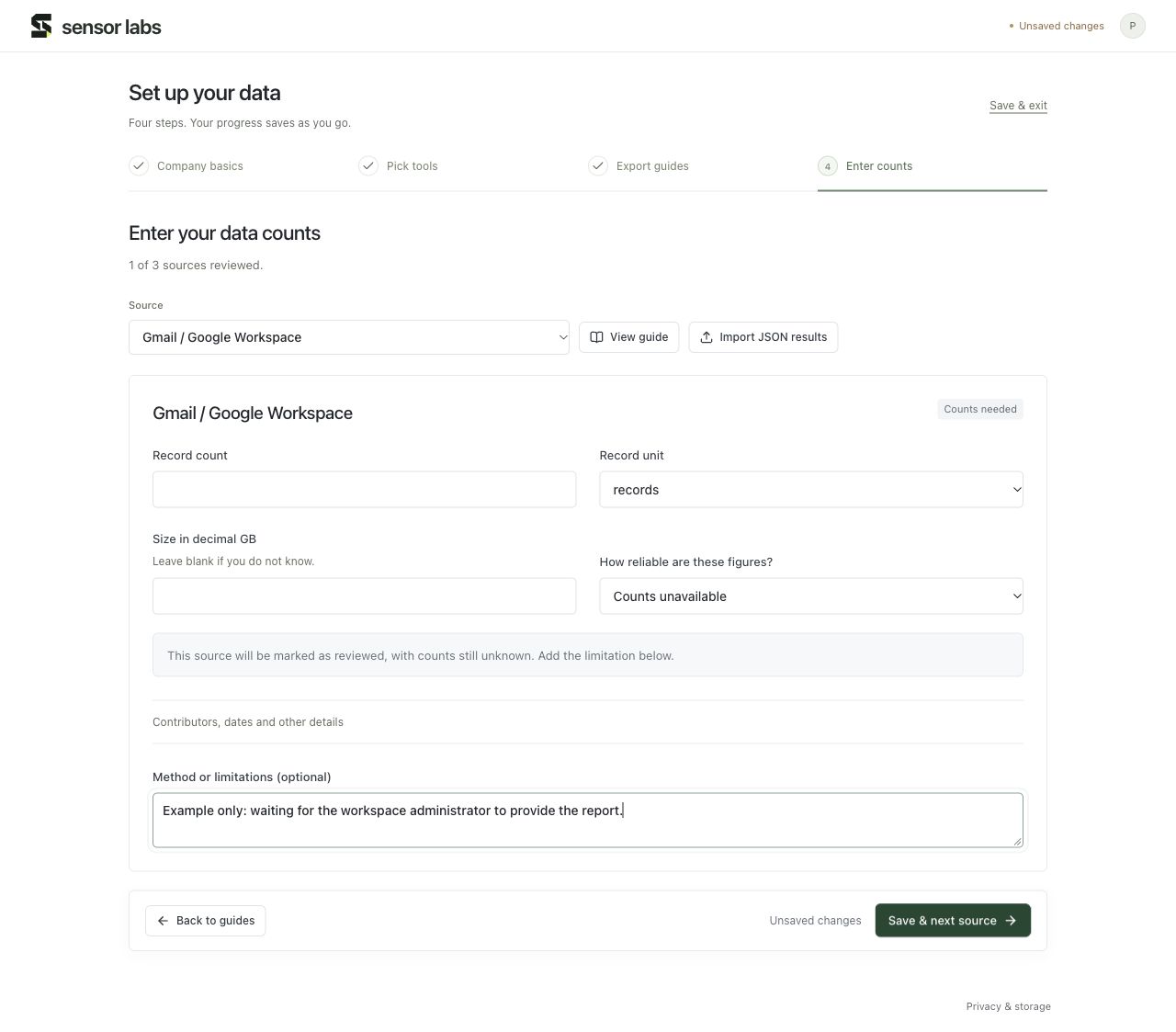
- Counts unavailable: review the source without making up a count or size.
If you cannot get the numbers yet
Choose Counts unavailable and describe the limitation, such as waiting for an administrator’s export. The source can be reviewed while its count and size remain unknown. Leave unknown fields blank. Enter zero only when you measured zero.
Finish setup and see what comes next
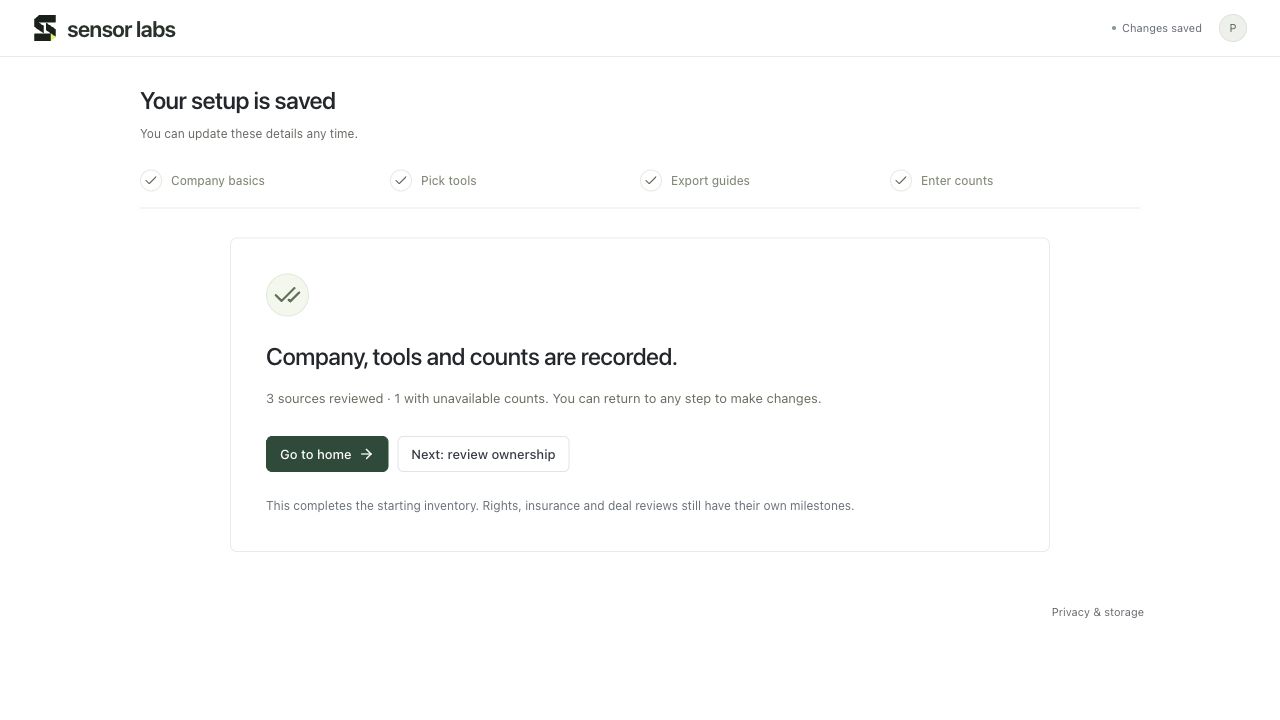
Save & finish setup appears when you reach the final unreviewed source or export row. The confirmation summarizes reviewed, unavailable and excluded sources.
Go to home opens your workspace. Your counts are in Data → Sources and Data → Summary. Home shows the next incomplete action. Completing the starting inventory does not complete ownership, insurance, contract or payment reviews.
Save, leave and come back
Use Save & exit to save the current draft and return to Home. Continue guided setup from Home, or open Data → Sources → Data actions → Continue guided setup. The flow resumes from saved company details, tools and source reviews.
Wait for Changes saved before closing the tab. A failed save keeps an error visible; do not assume the data reached the server. Steps that depend on missing basics or tools stay unavailable until those details are saved.